A theoretically useful, but dangerous shell script for use on OS X…proceed with caution.
Now of course you always do a solid job on your programming, but maybe you didn’t have enough time to find all the memory leak bugs that start to appear a few days into your installation. Something that only appears up after your software loops through 100 times is a much harder thing to deal with than something that shows up every single time. Sometimes you need a hot fix if you’re not able to find the true cause on short notice.
The following is a script that you’ll need to modify for your own uses, but this is essentially what it does: When set to run automatically (cron job or lingon), it checks your computer’s processes every so often to check their memory usage. If an application suddenly shoots over the memory usage threshold, this script quits the leaky app, and then re-opens it…hopefully freeing up leaked memory and allowing the computer to run for a longer period.
Sometimes apps that have leaked too much can grind your computer to a halt and even your other automatic scripts can have a hard time running, so this can work as an early warning system. This could even be modified to email you if your app goes over a specified memory amount.
Thanks to Patricio Gonzalez Vivo for the help with the regular expressions and logic/formatting syntax in the shell scripting
Again, test ahead of time if possible:
#!/bin/sh
#Script to reboot application after crossing memory usage threshold
#Can be used in conjunction with Lingon or a Cron to run on a periodic basis, e.g. every 2 minutes.
#Version 1.0 written by Daniel Mare from http://hintsforums.macworld.com/showthread.php?p=592991
#Date: 02/08/2010
#Modified by Blair Neal 11_27_2012 http://www.blairneal.com
#Helpful shell scripting additions from Patricio Gonzalez Vivo http://www.patriciogonzalezvivo.com/

MEM_THRESHOLD=6 #INTEGERS ONLY If any process uses more MEM (in percentage of total MEM) than this threshold, the application will be rebooted
#Say you have 8gb of RAM, then a process that is using 2gb or more would be using 25%

#test is MEM usage is excessive
MEM_LINE=$(ps wwaxm -o %mem,command | head -2 | tail -1) #Output from ps showing the TOP app that is using the most memory
MEM_USAGE=`echo $MEM_LINE | sed 's/ .*//'` #Strip off the numbers from above output
MEM_USAGE=${MEM_USAGE/.*} #Truncate decimals - bash only compares integers TODO: incorporate this line into one above

if [ $MEM_USAGE -gt $MEM_THRESHOLD ] ; then
    #echo "Original line: " $MEM_LINE | sed -e 's/.*///'
    MEM_PROCESS=`echo $MEM_LINE | sed -e 's/.*///'` #this is the process name, used to kill the app later
    MEM_FORMATTED=`echo $MEM_LINE | sed -e 's/.*///' | sed 's/ -psn_[0-9]_[0-9]*/.app/' | sed 's/ //g'` #Get the name of process that triggered this alert, strip off the -psn and ID numbers and delete all spaces so it can be compared with your app name. Could be more elegant, but gets the job done!
    echo "Memory leak threshold exceeded by this process: " $MEM_FORMATTED
    echo $MEM_FORMATTED "It was using this percentage of memory: " $MEM_USAGE

    if [ $MEM_FORMATTED == "Twitter.app" ]; then #make sure you're killing your own app, not something else important like a system process
        echo "Closing Leaky App " $MEM_PROCESS
        killall $MEM_PROCESS
    else
        echo "This is not the leaky process you're looking for!" #Your app wasn't the culprit
    fi
else
    echo "All is well! Your app is not using too much memory."
fi

sleep 15 #Wait 15seconds (arbitrary) for everything to close out before restarting

#Now check and see if your app is closed out, and if it isn't then re-open it
if [ $(ps ax | grep -v grep | grep "Twitter.app" | wc -l) -eq 0 ] ; #Replace Twitter.app with your own app's name
    then
    echo "YourAppName not running. Opening..."
    open /Applications/Twitter.app
else
    echo "YourAppName running"
fi
You could also set it to open an Automator Script or an Applescript to do whatever it is you need run instead of having it just close and open your app.
P.S. I’ve found Firefox is a really good tester if you need something that gobbles up memory quickly 🙂
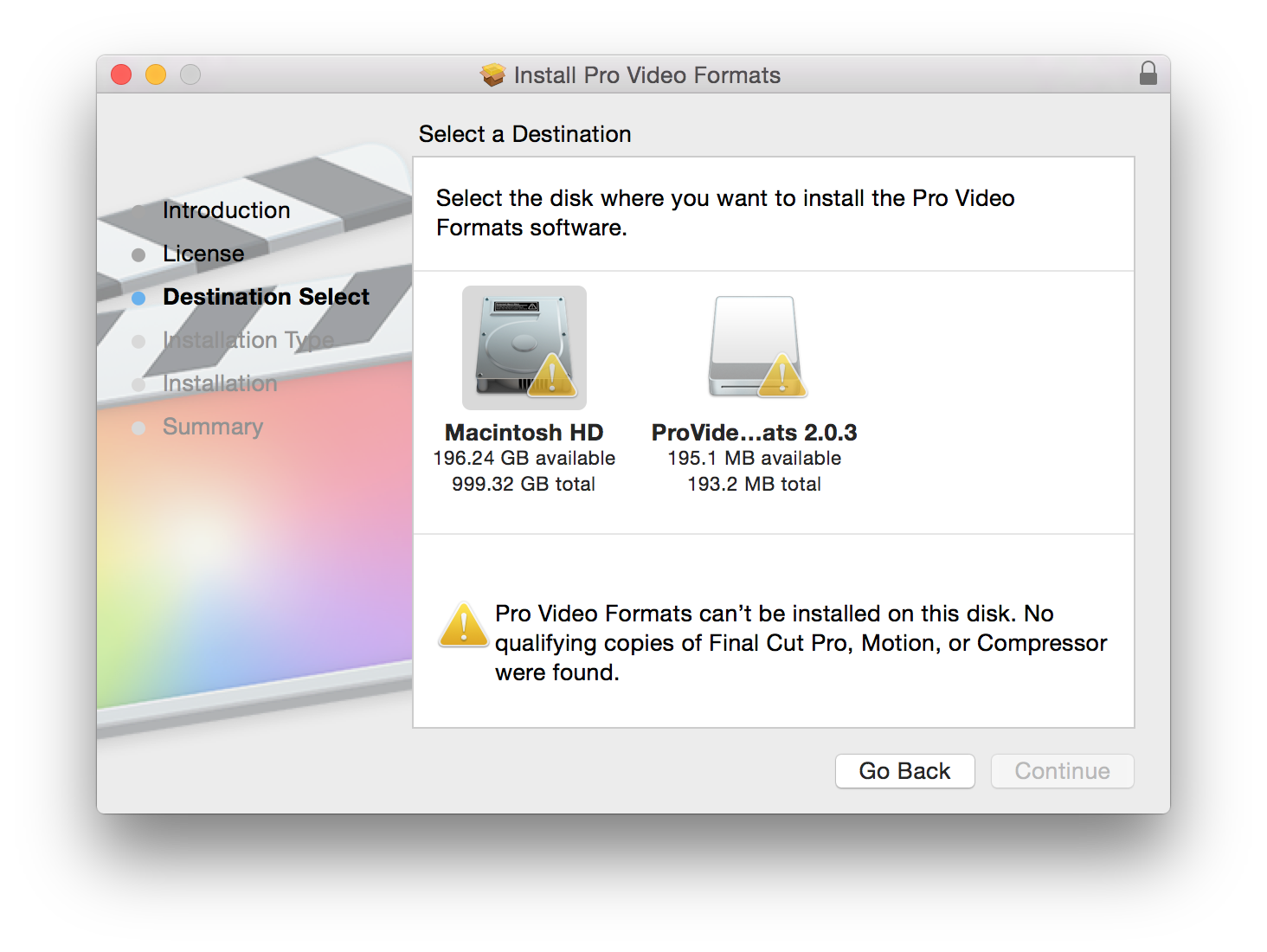 If you don’t have Final Cut Pro, Motion or Compressor (all paid apps) – you won’t be able to install them. This means you can’t use: